
AI can build an internal tool that works well in a demo. But what happens when it fails every night, handles much more data, or gets shared with someone new?
We're building a platform where teams can make internal apps and workflows with AI. It isn't finished yet. In November 2026, we changed how it handles these three situations:
| Problem | What we changed |
|---|---|
| A scheduled workflow could keep failing forever | Pause it after at least seven days and 20 failures in a row, and say why |
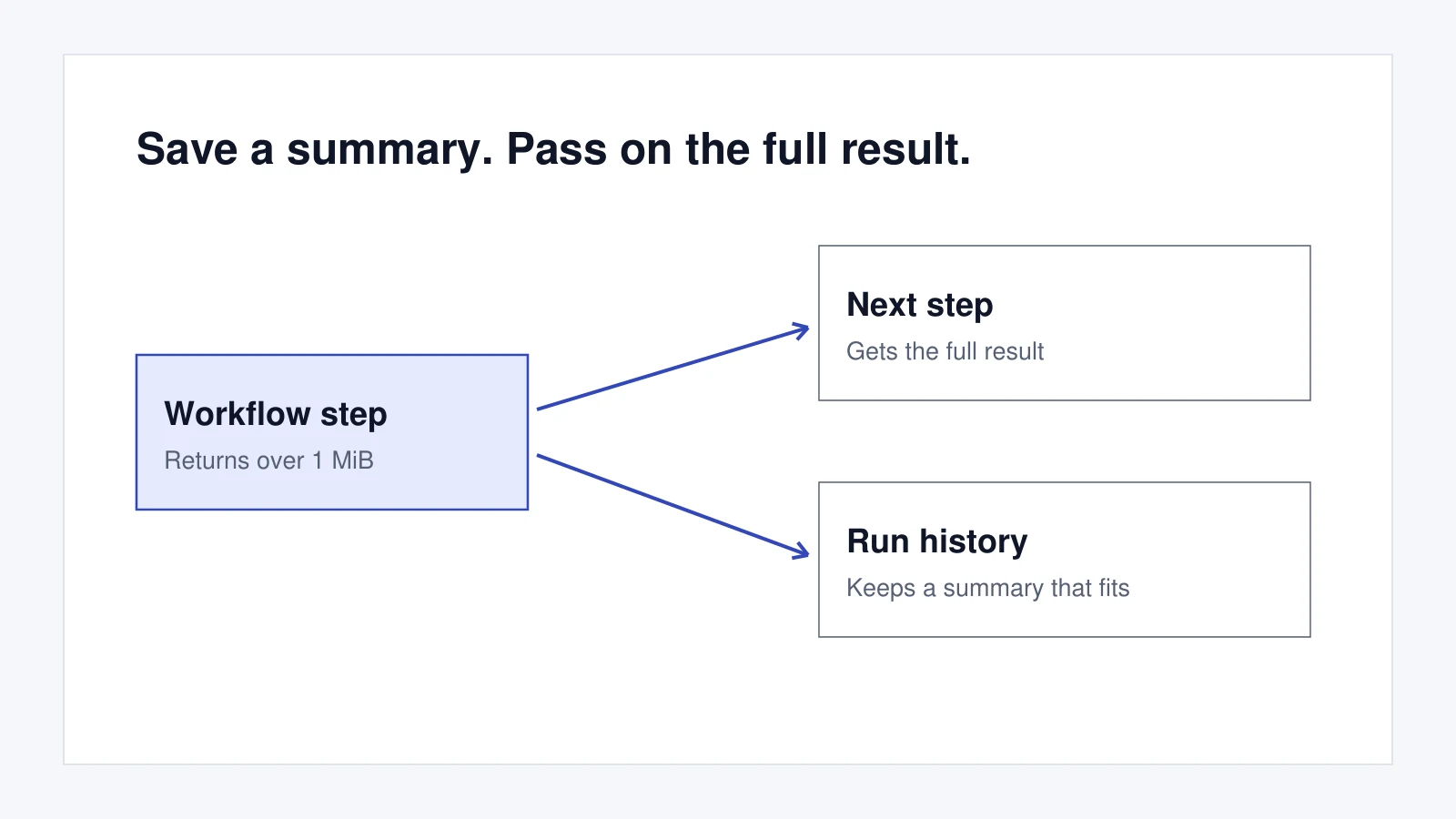
| A large result could make a working step fail | Save a summary in the history, but pass the full result to the next step |
| Sharing an app didn't share its uploaded data, and an app's settings aren't enough to decide who can see it | Check the data owner's approval, the person's role and the version of the app |
Each change has automated tests for its main cases. They don't prove that the whole platform is reliable.
1. Stop a workflow that keeps failing
Retries can help with a short outage. They won't fix an expired password or a deleted column. Without a limit, a scheduled workflow can keep failing with nobody looking into it.
Our workflows now pause when both of these are true:
- Every run has failed for at least seven days
- There have been at least 20 failures in a row
We use both because either one could pause a workflow too soon. A workflow that runs every minute could fail 20 times during a short outage. One that runs once a week could fail for seven days after only one or two runs.
A few details matter too:
- Only a scheduled run can pause the workflow, and only after its retries are used up. A manual run never pauses it, so people can test a fix safely.
- One successful run resets the count. Resuming a paused workflow also starts a new count.
- The original error stays visible. The message says how many times the workflow failed, what to do next and what the last error was.
Seven days and 20 failures suit our product, but they may not suit yours. A payroll workflow may need someone to act after its first failure. Pausing also doesn't replace an alert, so decide who gets told and how quickly.
Test it
- Make every run fail, and check that the workflow pauses at the right time.
- Let one run succeed, and check that the count resets.
- Run a failing workflow manually, and check that it doesn't pause.
- Resume a paused workflow, and check that the count starts again.
- Check that the message says what went wrong and what to do next.
2. Don't let the history break the work
Run history helps people see what each step did. Ours saved each step's full output in a database that limits each document to 1 MiB.
If a step returned more than that, saving its history failed. That made the step fail too, even though it had done its work. Retrying didn't help, because the result was still too large.
The next step and the run history need different things, so we now treat them separately:
- The next step gets the full result. We don't cut data that the workflow needs.
- The history keeps the full result if it fits. If it doesn't, the history keeps a summary with its size, number of rows and first few rows.
- If several values are too large together, we summarise the largest first and leave the rest alone if they fit.
There's still a limit on how much data we can send to a step that runs code. If the data is too large, that step now fails with a message that says the earlier step needs to return less data. Cutting the data without saying so could produce an answer that looks right but leaves out rows.
A summary can still contain private data, because it shows the first few rows. Protect it like the full result, and decide how long to keep it.
Test it
- Try a result just under the limit, one just over it and one several times larger.
- Try several values that fit on their own but not together.
- Check that the next step gets every row, not just the summary.
- Check that the history clearly says when it's showing a summary.
- Go over the limit for a code step, and check that the error says what to change.
3. Don't use an app's settings as permission
Someone uploads a spreadsheet, builds a dashboard with it and shares the dashboard. Their colleague needs to see that data in the dashboard. That doesn't mean they should see the person's other uploads.
At first, our uploads could only be read by the person who added them, so a shared dashboard showed no data to anyone else. Our first fix checked whether the person had access to the app, and whether the app's settings used that table.
That wasn't enough. Anyone who can build an app can change its settings. Someone could make their own app, name another person's table in its settings, and use the app to read it. We found this gap and fixed it in the same pull request, before merging the change.
Now, someone can only read an upload through an app when all three of these are true:
- The data's owner has approved it. We record this when the owner saves a version of the app that uses the table. Changing the app's settings isn't enough.
- The person has a role on that app. Being in the same workspace isn't enough.
- The version of the app they can see uses that table.
This only lets people read the data. It doesn't let them change it.
The main lesson is to keep permission separate from anything the app's builder can edit. This matters even more when AI writes the settings. They can describe what an app needs, but they shouldn't decide what it's allowed to read.
Test it
Use at least three test accounts: the data's owner, someone with access to the app, and someone in the workspace without access.
- Check that the person with access can read the table the app uses, but not the owner's other tables.
- Check that the person without access can't read it, even if they know the app's ID.
- Have someone make their own app and name the owner's table in its settings. They should be refused.
- Have someone other than the owner add another of the owner's tables to the shared app. That should be refused too.
- Check that read access doesn't let anyone change the data.
Run these tests directly against the server. Hiding a button doesn't stop someone from making the request.
Before people rely on an internal tool
Make sure you can answer these questions:
- What happens if it fails every time? Does it ever stop, and who finds out?
- What happens with much more data? Is anything cut, and does the tool say so?
- Where is access checked? Could the person building the app change that rule?
- Can you tell what happened? Does the history show the original error and whether it's only showing a summary?
- Who looks after it? Who fixes it when its data, password or connected service changes?
You can also use our guides to AI agent workflows that keep working in production and durable AI agents.
If you have a tool that works in a demo and now needs to be reliable, tell us what it does and who will use it. You can also see how we build AI agents and workflows.


